Map Installation Guide
Kronifer's Map Manager is the easiest and most streamlined way to download and install custom cities into Subway Builder. All you need is a provided ZIP file and the Map Manager iself, and then you're good to go.
Step 1 - Installing the Map Manager
Download the latest release of the Map Manager at https://github.com/Subway-Builder-Modded/subwaybuilder-patcher/releases. To download, click on the version that corresponds to your operating system.
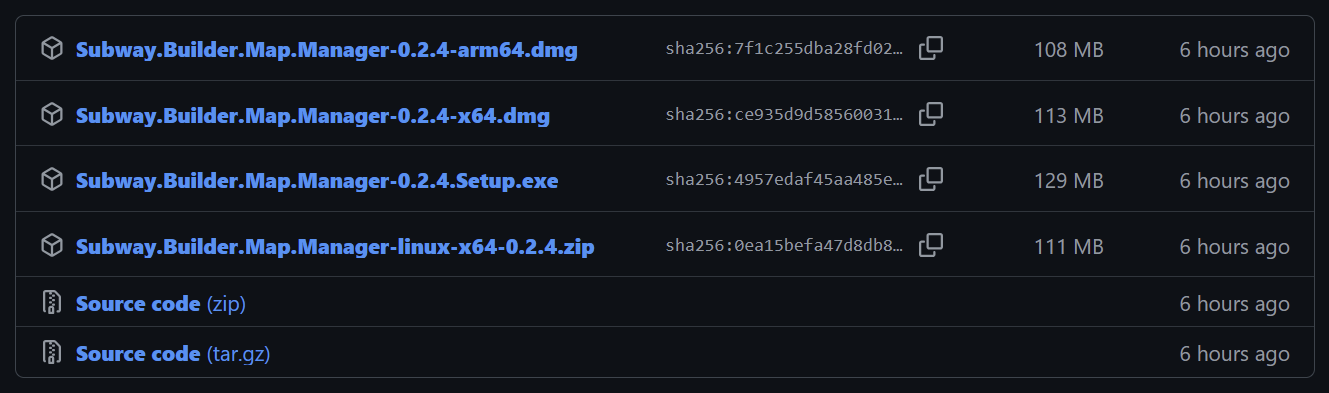
For Windows, you want the .exe file. For Linux, you want the .zip file. For MacOS, use
the arm64.dmg file if your Mac has an Apple Silicon Chip (e.g. M1, M2, M3, etc.) and the x64.dmg
file if your Mac has an Intel chip. As a rule of thumb, Macs newer then around 2021 tend to have
Apple Silicon Chips and older models tend to have Intel chips, but double-check as there are
exceptions.
On MacOS, the .dmg installer is likely to be quarantined. To run the installer, open a
terminal in the folder where you've downloaded the installer to, then run
xattr -d com.apple.quarantine {INSTALLER_FILENAME}. For example, when downloading version 0.2.7
for an ARM Mac, you would run
xattr -d com.apple.quarantine Subway.Builder.Map.Manager-0.2.7-arm64.dmg.
In addition, the Library folder containing the metro-maker4 folder may be hidden by default. To solve this, open Finder and open the Home folder, then select View -> Show View Options -> Show Library Folder.
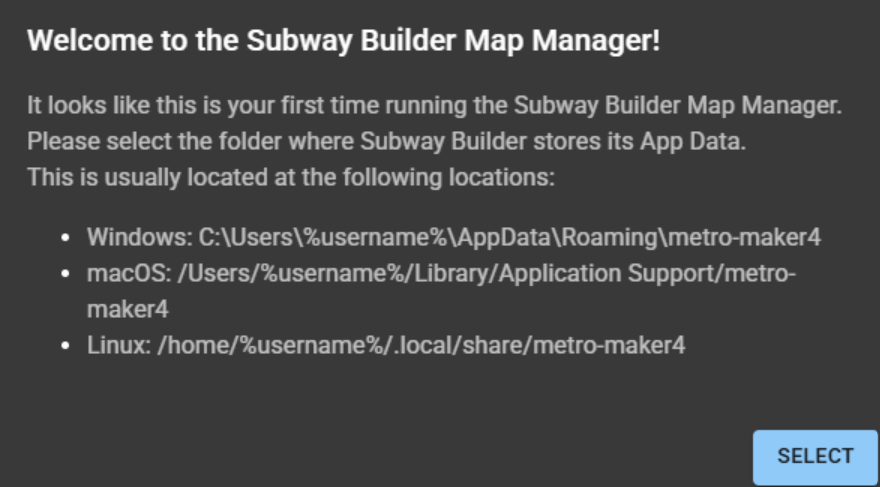
After that, install the app as you normally would any other app. Once the installer is finished,
launch the app and run through the setup process, selecting your game executable location and your
metro-maker4 folder. At this point it is safe to delete the ZIP, the installer, and any other
files that you may have downloaded.
Step 2 - Adding the Map
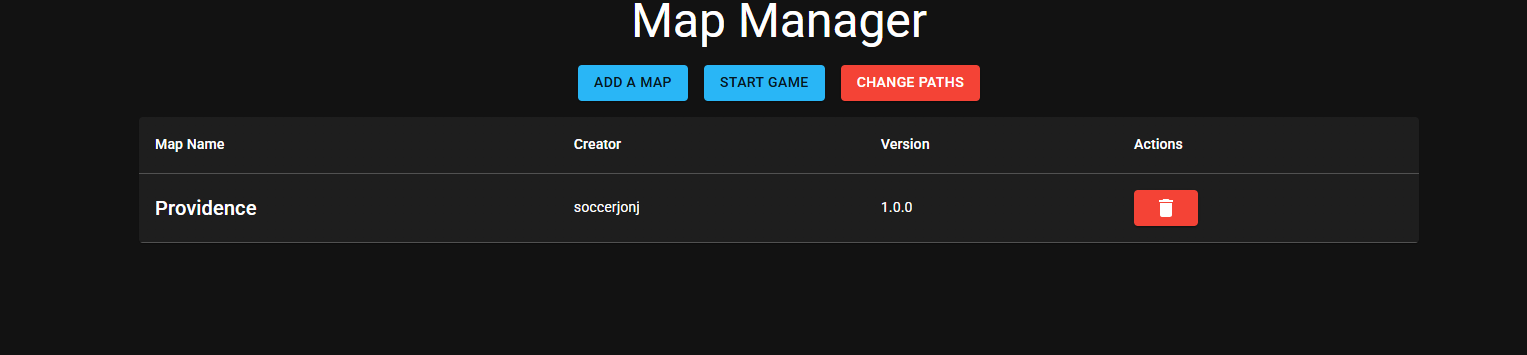
To install a map, simply click on the ADD A MAP button and import the ZIP file that you downloaded
containing your map. Once that is finished, you should see the map name, the creator, and the
version appear on the screen.
Step 3 - Launching Subway Builder
Once you have added all of your maps, you can launch the game using START GAME. This is how you
will launch the game from now on. In-game, your maps will appear under the CUSTOM tab, and they
are ready to be played!
Due to the way the game currently works, you must launch the game via the Map Manager every time you want to play a custom map. If you do not launch the game using the Map Manager, buildings and water will not appear ingame.