Profile Management
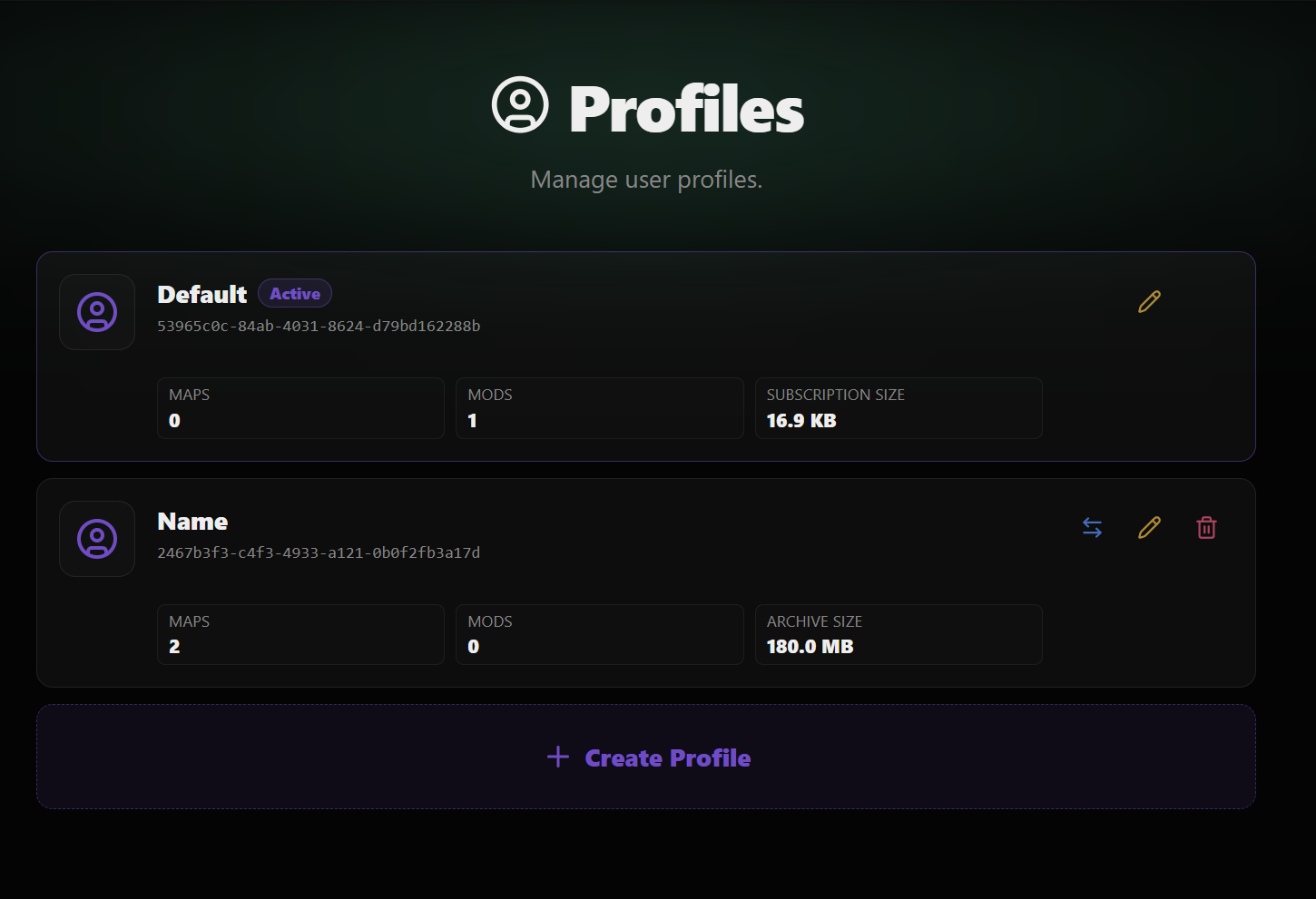
You can have multiple Railyard profiles. You can create, manage, and delete profiles on the Profiles page, accessible via the navbar. Within each profile, you can manage different assets, including local ones. This is useful if you want to keep your assets organized or if you have maps with conflicting city codes.
Tip
If you have maps with conflicting city codes, you can create separate profiles for each map to avoid conflicts. For example, if you have two maps that both use the city code "YWG", you can create one profile for each map and install the maps in their respective profiles. This way, you can switch between the profiles to play each map without any issues.
UI Preferences are also managed per-profile. This means that you can have different UI preferences (including themes) for each profile.
Creating a New Profile#
To create a new profile, click the "Create New Profile" button on the Profiles page.You will be prompted to enter a name for the new profile. Once you have entered a name, click "Create" to create the new profile.
Deleting a Profile#
To delete a profile, click the trash can icon next to the profile you want to delete on the Profiles page. You will be asked to confirm the deletion. Click "Delete" to confirm and delete the profile.
Note
You cannot delete the default profile.
Renaming a Profile#
To rename a profile, click the pencil icon next to the profile you want to rename on the Profiles page. You will be prompted to enter a new name for the profile. Once you have entered a new name, click "Rename" to save the new name.
Note
Every profile must have a unique name. You cannot rename a profile to a name that is already in use by another profile.
Switching Profiles#
To switch to a different profile, click the switch icon next to the profile you want to switch to on the Profiles page. You will be asked to confirm the switch. Click "Switch" to confirm and switch to the selected profile.
When you switch profiles, any installed assets will be put into a ZIP archive. These ZIP archives are only present for inactive profiles. When you switch back to a profile, the ZIP archive will be extracted and the files will be restored to their original locations. The archive will then be deleted.
Danger
Swapping profiles is a destructive action. When you swap profiles, all Railyard-managed files will be archived and their original versions deleted. When you swap back to the profile, these files will be restored.
Note
You cannot switch profiles while the game is launched. Make sure to close the game before switching profiles.