GitHub Token
This guide will walk you through generating a GitHub token for use with Railyard. This can help users who are having issues with GitHub's API rate limits when using Railyard.

Step 1 - Generating a GitHub Token#
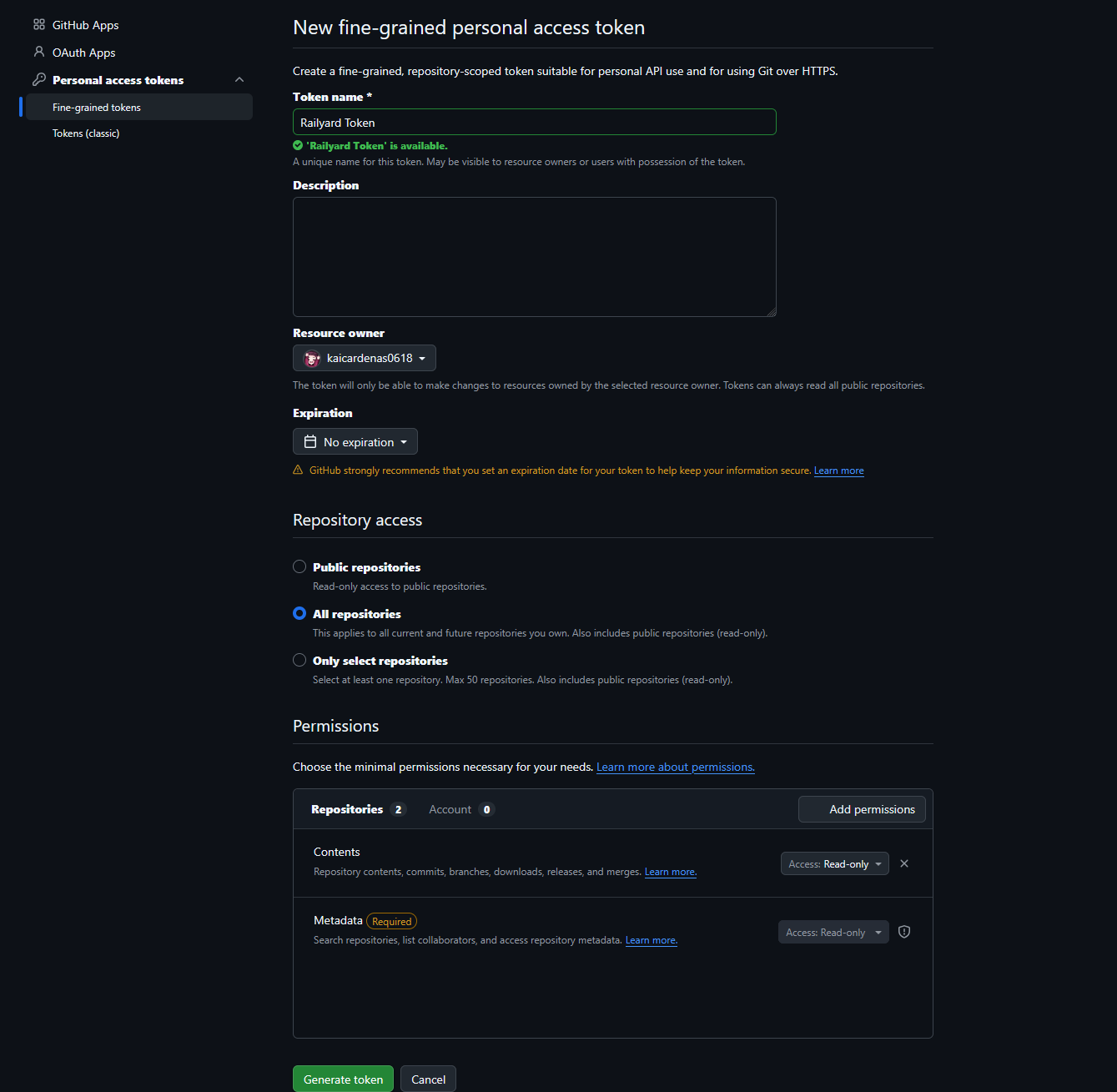
Go to https://github.com and create an account if you don't have one already. Head to your settings, then click on "Developer settings" in the sidebar. From there, click on "Personal access tokens", then "Fine-grained tokens". Click on "Generate new token".
From here, input a token name. Under "Resource owner", select "All repositories". Under "Permissions", add a permission for "Contents" and set it to "Read-only". Finally, click "Generate token".
Note
Once your token expires, you may experience rate limit issues again until you regenerate your token and change it to Railyard.
Tip
The "Metadata" permission will be automatically added once you select the "Contents" permission. This is required for Railyard to be able to use the token, so there is no need to worry about adding it manually.
Once you have generated the token, copy it to your clipboard. You will need this for the next step.
Important
If you forget your token and need to reinput it into Railyard, you can simply regenerate it.
Step 2 - Adding Your GitHub Token to Railyard#
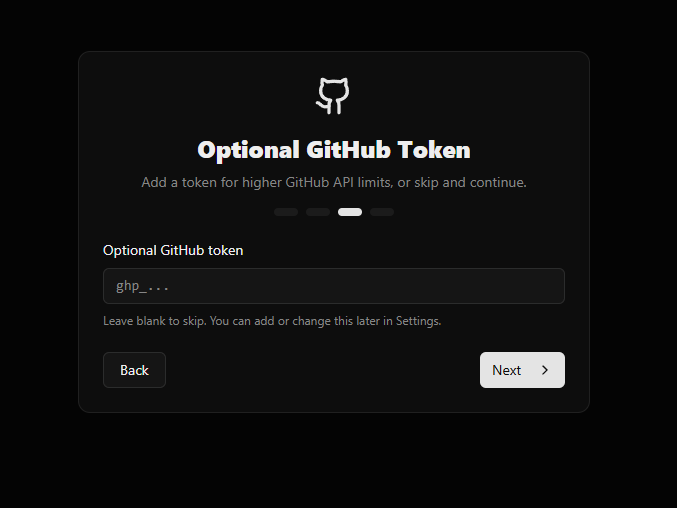
If you have not yet completed the initial setup for Railyard, you can add your GitHub token during the setup process. If you have already completed the initial setup, you can add your GitHub token at any time via the settings menu.
In the setup process, you will see a step for adding your GitHub token. Simply paste your token into the input field and click "Next" to continue with the setup process.
Regenerating Your GitHub Token#
If for whatever reason you need to regenerate your GitHub token, simply go back to the "Personal access tokens" page in your GitHub settings. Find the token you generated for Railyard and click on the "Regenerate" button. This will generate a new token for you, which you can then copy and paste into Railyard as described in the previous step.
